Why download Zoom software to your computer? Using the Zoom app, you can
- Host a Zoom meeting
- Schedule a meeting
- Join meetings hosted by others
- Launch a scheduled or impromptu meeting
- See all of your scheduled meetings
- Chat with other UW Zoom host users
The following procedures show you how to download the Zoom desktop app.
- To download the Zoom app, go to https://washington.zoom.us/download
- Choose the first option on the page: Zoom Desktop Client
- For newer Apple devices with the M1 chip, download the M1 chip Zoom software.
- Follow the steps in the Zoom download wizard.
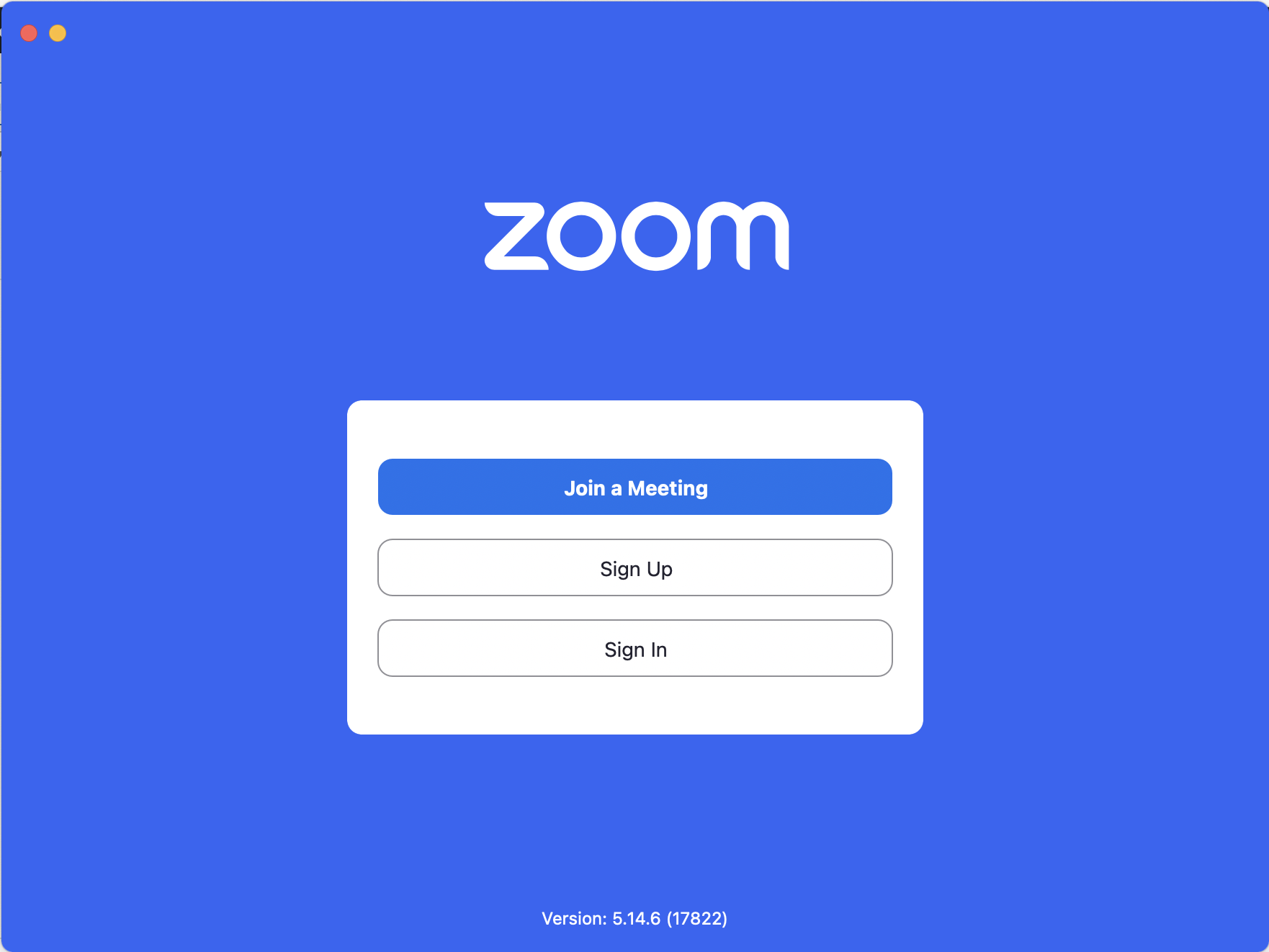
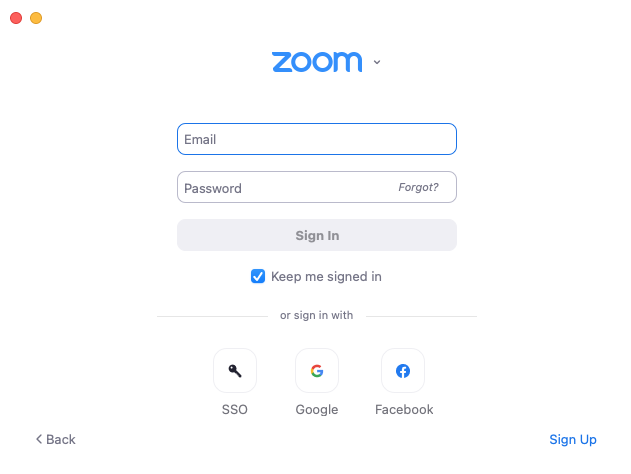
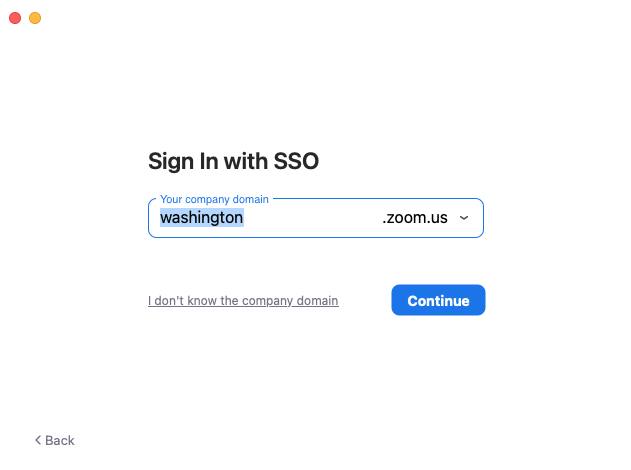
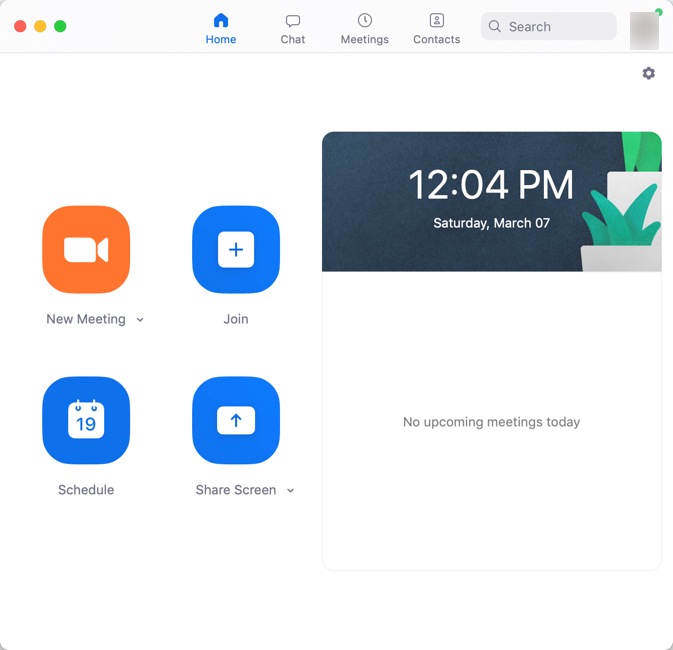
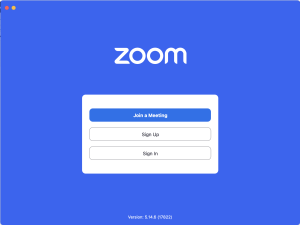
- When you have the client installed, you will see a window similar to this one:
The following steps show you how to sign into UW Zoom on the web.
Completely new to Zoom? Watch a
quick video tutorial to learn how to download and sign into UW Zoom.
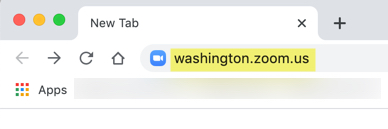
- Open a web browser and go to https://washington.zoom.us.
- If you are signed in to Zoom using a personal non-UW email address, sign out of Zoom and quit your browser. How do I sign out of Zoom?
- Click Sign In to UW Zoom.
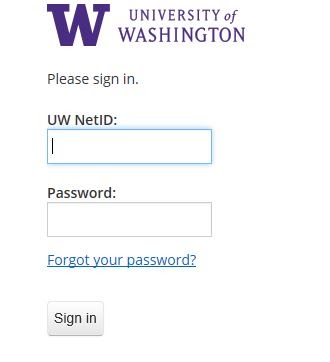
- After clicking the sign in button, you will be prompted to log in with your UW NetID and password.
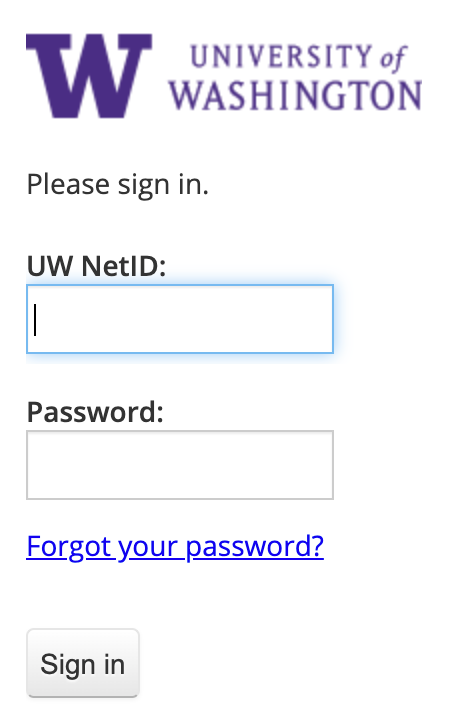
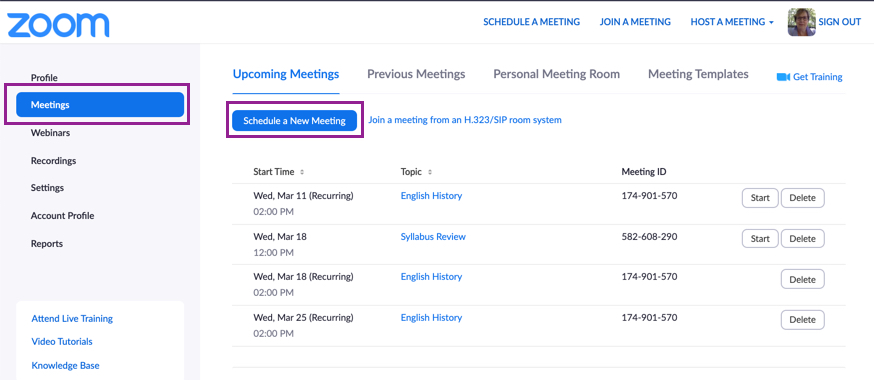
- After you enter your UW NetID and password and click Sign in, you will be taken to the Meetings screen.
Here you can schedule a new meeting, view any meetings you have scheduled, or go to your personal meeting room.
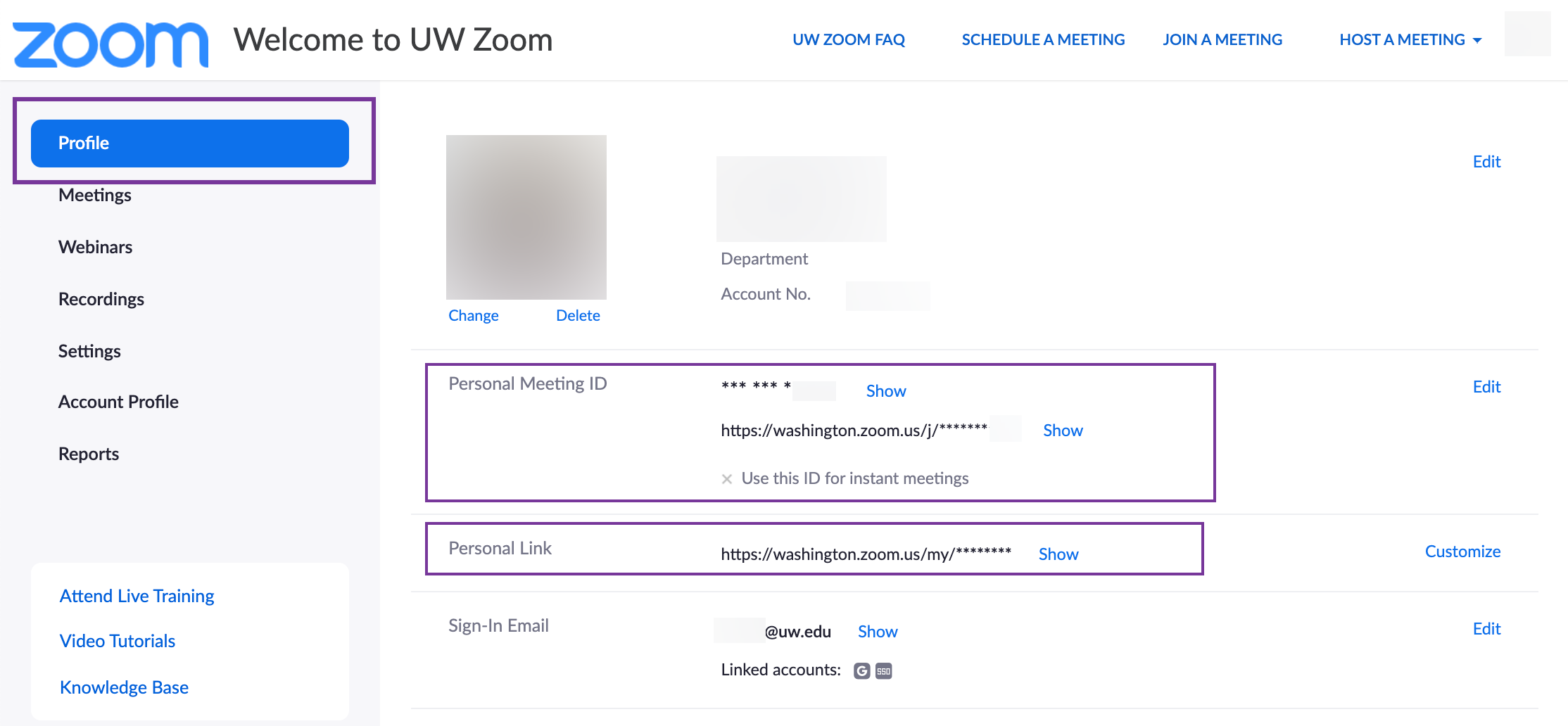
- In the left sidebar, click Profile. On the Profile screen, you can see your Personal Meeting ID (PMI) and your personal link. Both of these can be customized for your convenience. To customize the PMI, on the right click Edit. To customize your personal link, click Customize.
Follow these steps if you are trying to sign into UW Zoom using a Shared UW NetID.
Note: Using Shared UW NetIDs is possible, but
not recommended with Zoom. A host account can host only one meeting at a time. When a second user tries to sign in and host a meeting on the same Zoom host account, the first user is automatically logged out. Using a UW NetID that is shared by several people may cause meeting time conflicts, resulting in potential meeting interruptions.
- Sign out of all UW and Zoom websites.
- Quit the browser to clear your NetID login session.
- Open a new browser session, making sure that you are not signed into any sites.
- Go to http://washington.zoom.us.
- Click Sign In to UW Zoom. Next, you should see the UW sign in page.
- Enter the Shared UW NetID and password.
- You should see your Zoom profile page. To confirm that you are signed into the correct Zoom account, look at the personal meeting ID on the profile page.
- UW Zoom users: If you see "https://washington.zoom.us/j/YourMeetingIDnumbers" then you are signed into the correct standard UW Zoom account. The links for UW Zoom account meetings all begin with https://washington.zoom.us/
You can join a UW Zoom meeting by clicking a link in an email sent to you by the meeting host, or via a Zoom meeting number from within Zoom.
Join via email link
- If the meeting host sends you an invitation via email, look for "Join from PC, Mac, Linux, iOS or Android:" followed by a link.
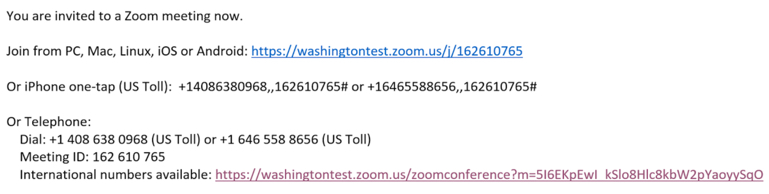
- Click the link to open your web browser to join the meeting. If you do not yet have Zoom installed, you will be guided through the steps to install it.
Join via meeting number
- If you have been provided a Zoom meeting number, you may join from within the Zoom app. Open the app and click Join.
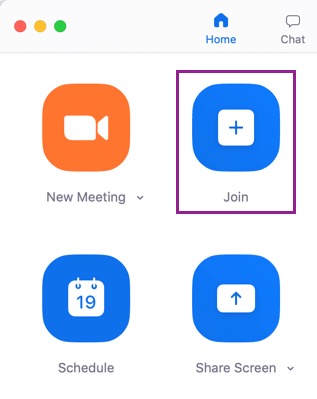
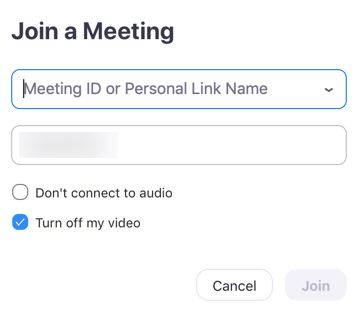
- On the following screen, enter the meeting number that you were provided and then click Join.
- After you click Join, you will be taken to the meeting screen:
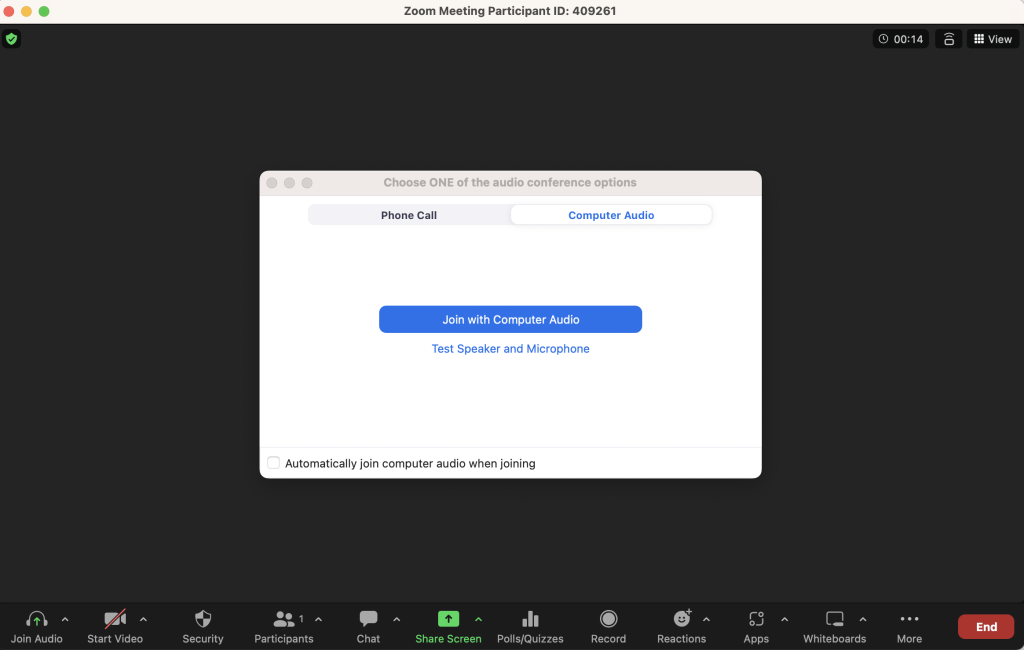
Adjust Audio Settings On the first time logging into a UW Zoom meeting, you will see the screen above (at the end of the previous procedure). Computer Audio is selected by default.
- To use built-in computer audio, click Join with Computer Audio. Be sure to Test Speaker and Microphone to ensure your audio devices are working properly.
- If you are unable to use computer audio, it is possible to call a phone number and participate in the meeting using phone audio. To do so, click Phone Call as shown below, and follow the instructions provided.
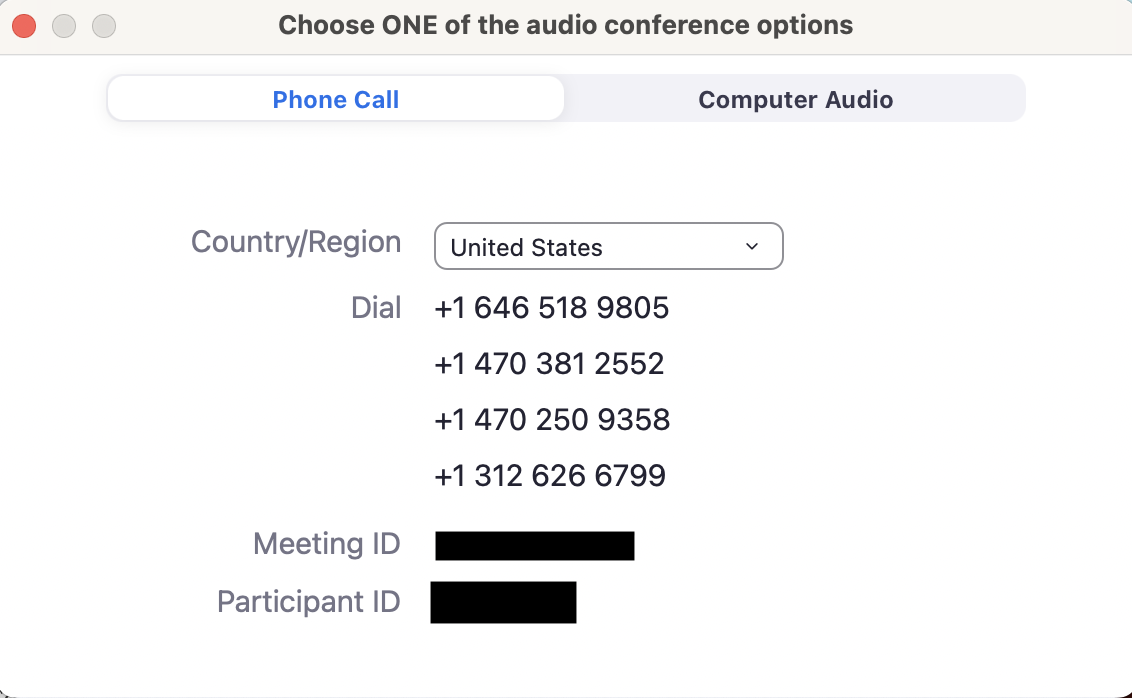
- After you click Computer Audio or Phone Call, you will see the meeting screen and you will be in the meeting.
If you are having issues joining a Zoom meeting using the software, you can join the meeting using a web browser instead.
Note: The web browser version of Zoom has limited functionality and should be used only as a backup to the Zoom software. See
Zoom's support page for a list of features available in the web browser. Your web browser must be updated to the minimum version number, as specified in
Zoom's support page.
Join a meeting or webinar
- To join the meeting, click the meeting link provided by the meeting host. If you are the meeting host, click Start from your UW Zoom Meetings page.
- If prompted to open the Zoom desktop client, click Cancel.
- Click the Join from Your Browser link.
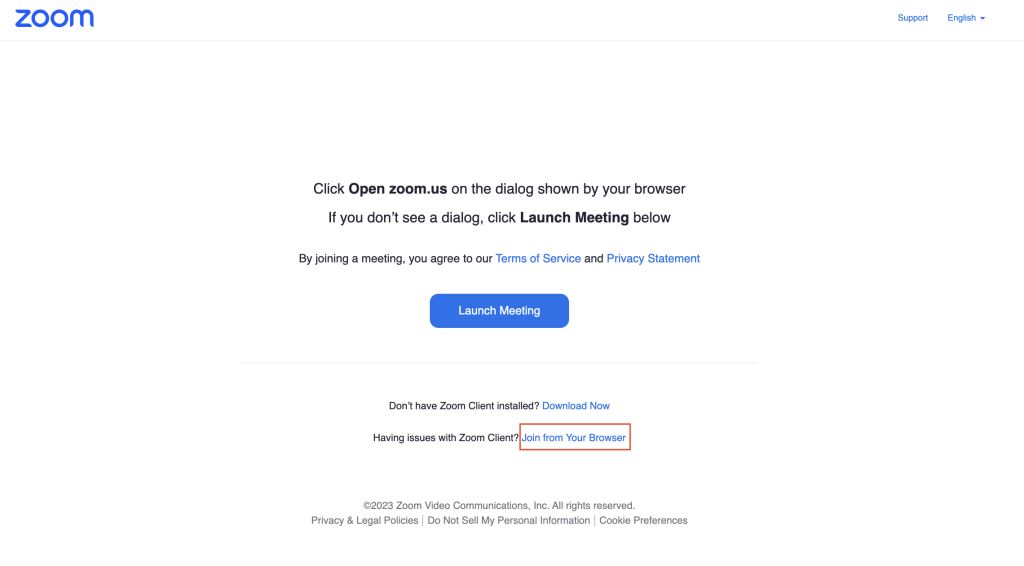
- Note: If you don't see this option, see instructions from Zoom how to turn on Join From Browser in your Zoom meeting settings
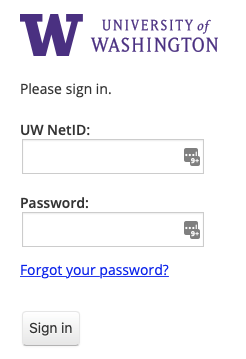
- If prompted, sign in to your UW Zoom account by clicking sign in with SSO.

- Enter your UW NetID and password.
- You will be prompted to enter your name and the meeting password if the password was not included in the join link.
- If prompted to allow microphone and camera access, click Allow.
- Click Join.
- If people in the meeting can't see or hear you, check your browser settings and allow Zoom to access the microphone and camera. See the help pages below for instructions how to allow microphone and camera in different web browsers:
For more details, see Zoom's support page on
using a web browser with Zoom.