The purpose of this page is to explain how to connect to a data cube with Microsoft Excel. This can be done in one of two ways:
Tip: If you have issues connecting to the cube, refer to Troubleshooting Data Cube Connection Errors.
Connect with a Template or Base Workbook
A template is an Excel Workbook with an established connection to a specific cube. Additionally, it already has a pivot table (which is what allows you to work with the cube) and it has been populated with one measure.
- Refer to the Templates/Base Workbooks section of the following resource pages for available templates:
- Do one of the following:
If... Then... A template is available... - Click a template in the Templates/Base Workbooks section of the applicable resource page. This will download the template to your computer.
- Open the Excel file and click Enable Editing.
- Click Enable Content.
- Display the Data tab, and then click Refresh All.
Tip: Make sure to Refresh All each time you use the cube to ensure you're always working with the latest data.
- Start exploring the data!
A template is not available... Follow the steps under Connect with a Blank Workbook below. - Click a template in the Templates/Base Workbooks section of the applicable resource page. This will download the template to your computer.
Connect with a Blank Workbook
- Open Microsoft Excel and start a new blank workbook.
- Display the Data Connection Wizard:
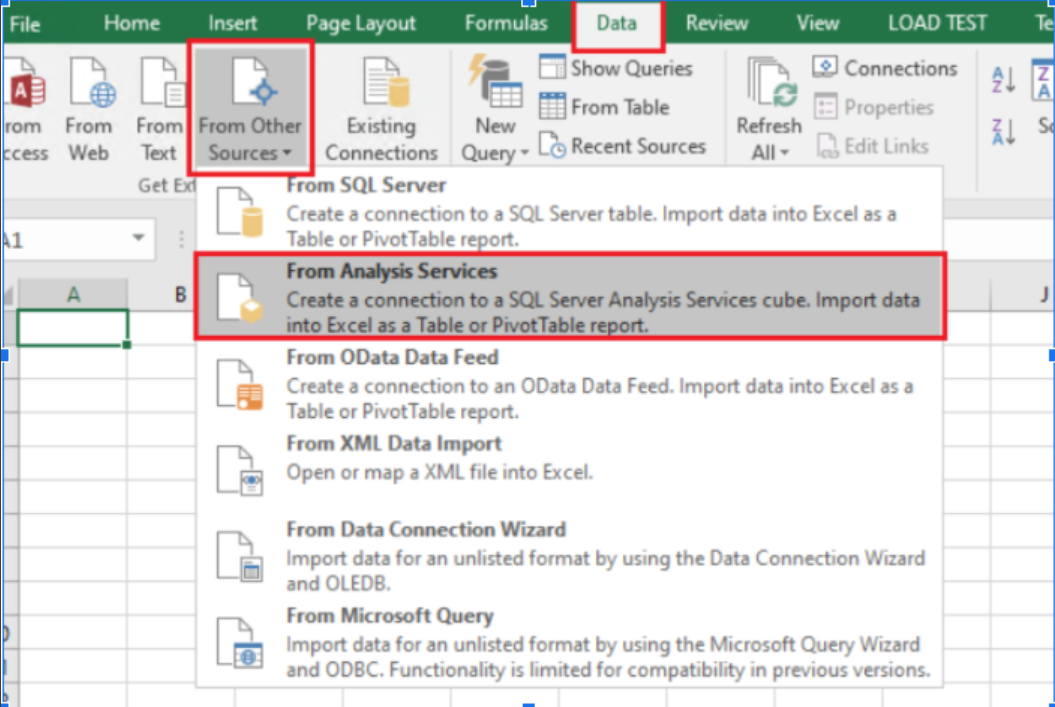
If using... Then... Excel 2016 Select the Data tab, then From Other Sources, and then From Analysis Services.
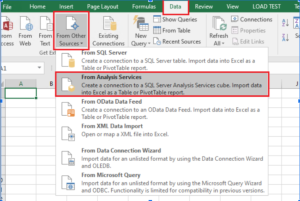
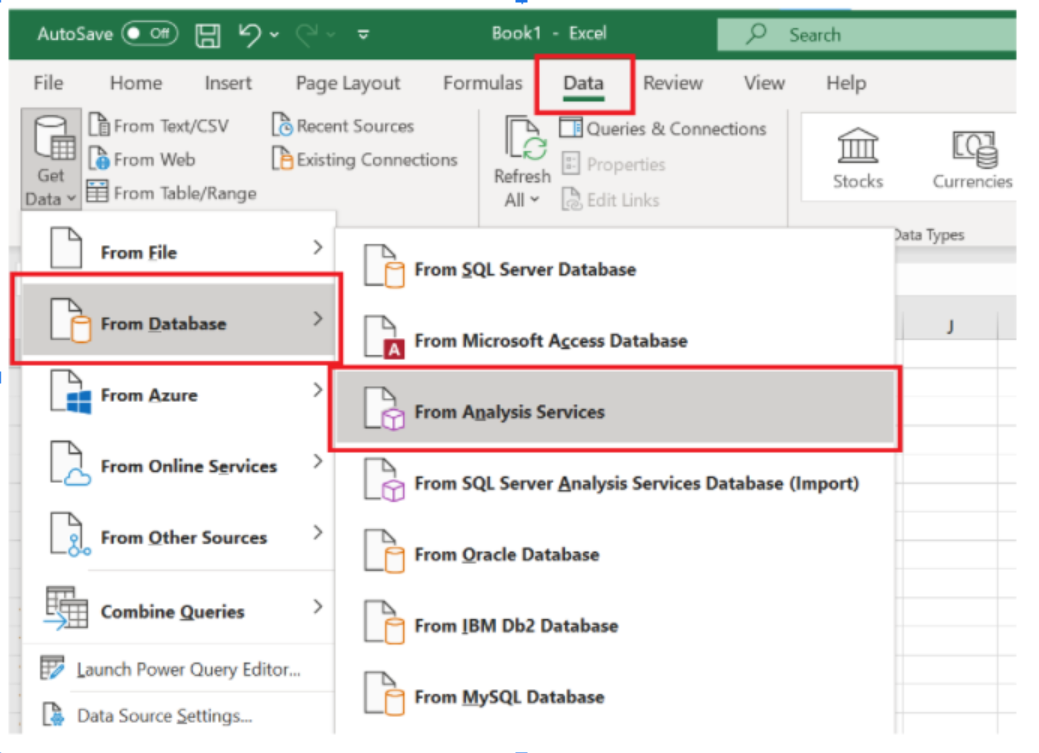
Selecting "From Analysis Services" in Excel 2016Excel 365 Select the Data tab, then Get Data, then From Database, and then From Analysis Services.
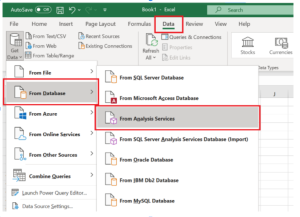
Selecting "From Analysis Services" in Excel 365 - Populate the Connect to Database Server window as follows then click Next.
Field Description Server Name Enter cubes.uw.edu Log on credentials Select Use Windows Authentication. If prompted for a user name/password:
- User Name: Enter netid\your UW NetID
- Password: Enter your password.
- Select the cube:
If using... Then... Excel 2016 From the database dropdown, select the applicable cube, then select Model, and then click Finish. Excel 365 From the database dropdown, select the applicable cube, and then click Finish. - Select where you want the table to be located on the worksheet (for example, cell A1) and then click OK. You are now connected to the cube.
Note: You only need to perform these connection steps once per cube. To access this connection when opening a new workbook, select the Data tab, and then click Existing Connections.