What’s happening?
The eSignatures service is rolling out a retention period for aging envelopes in all of our departmental Docusign accounts. As part of this process, Docusign sends a notification email to everyone associated with the envelope, providing an opportunity to retrieve it before it is removed from the system. The notification emails will most often look like this: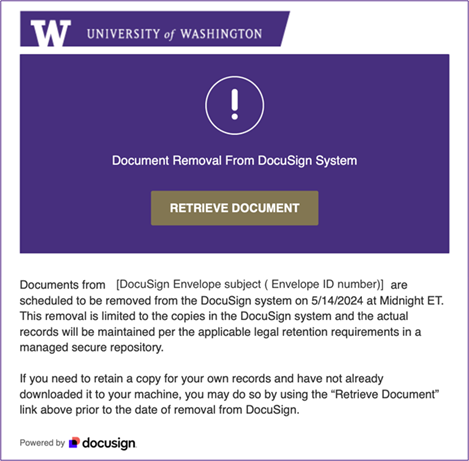
Figure 1: Notification for Document Removal from Docusign System
What are my options?
If you want to be reminded before an envelope you sent or signed is removed, you do not need to take any action. You will receive these notifications if any envelopes you signed or were otherwise a party to are scheduled for removal from the system.
If you do not want to receive these notifications, follow the steps below to update your account notification preferences. If you have sent or signed a large number of envelopes and do not need to be notified when they are removed, we recommend updating your preferences to stop receiving these notifications.
How do I update my Docusign notification preferences?
- Log in to Docusign using your UW NetID at https://account.docusign.com and click on your profile icon at the top right of the page. Select “My Preferences.”
Figure 2: My Preferences in Docusign - Click “Notification Preferences” in the left column under “General.” This opens your notification preferences. There are sections for notifications you receive as a sender and recipient.
Figure 3: Notifications in Docusign - Expand the Envelopes Notification Preferences menu:
Figure 4: Envelopes Notification Preferences in Docusign - Under “Notify me when I am the sender”, uncheck “Documents will be purged from the system.”
Figure 5: Sending Notifications in Docusign - Scroll further down the page to “Notify me when I am the recipient” and uncheck this box there as well.
Figure 6: Recipient Notifications in Docusign - Click “Save” either at the bottom of the page to update your preferences.
Figure 7: Sending Notifications Menu with Option to Save
Switch Accounts
Important: If you have multiple Docusign accounts, repeat the steps above in each account to update your notification preferences.
- Select your profile icon on the top right of your screen:
Figure 8: Selecting profile in Docusign - Click on “Switch Account” to display the list of accounts where you are a member:
Figure 9: Select Switch Account under your profile
Figure 10: Account memberships displayed - Select the account that is not showing as “Current” and click “Confirm.”
Figure 11: Select your other account and click “Confirm” to switch to it - Repeat the steps to update your notification preferences for each account.
Support
If you have any questions or concerns about this announcement, please contact the eSignatures team directly at Get help with eSignatures (Docusign).
If you have any questions about records management, please contact the UW Records Management Services team at recmgt@uw.edu. For questions regarding UW Medicine Records and Information Governance, contact the team at hrc@uw.edu.